
INSTALLATION INSTRUCTIONS FOR ALL DEVICES
Streaming Sticks and Streaming Devices
Fire TV or Fire Stick
Walmart ONN Streaming Device
Chrome Cast or Google TV’s
Fire TV or Fire Stick
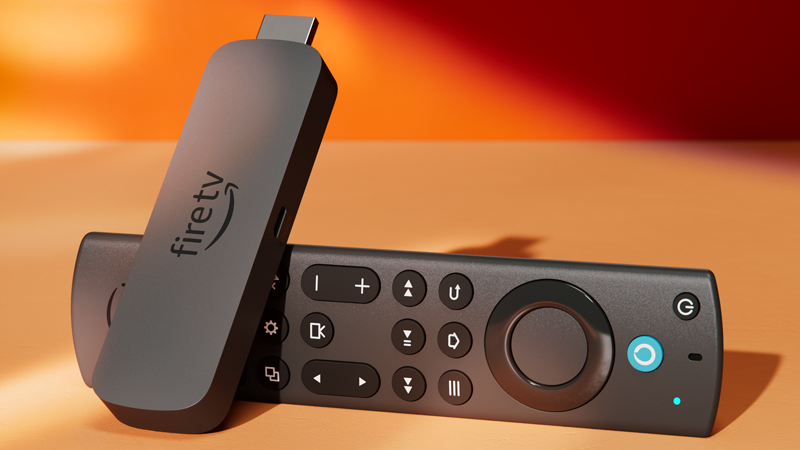
Note: In this tutorial, we provide the information needed to install the app on your Firestick, Fire CUBE, or FireTV.
How to setup TAGO on Fire TV Stick
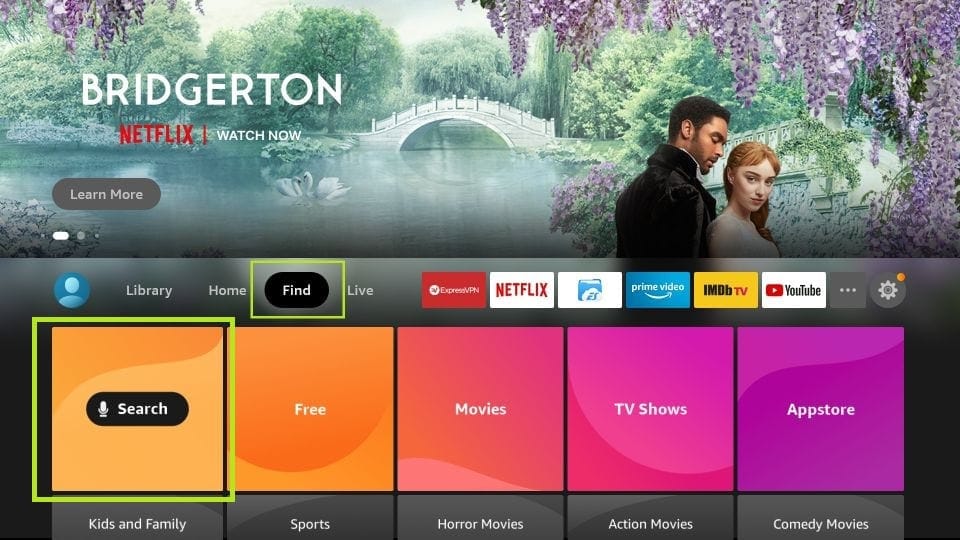
From the home screen of your device, hover over the Find option.
1. We will first install the Downloader app.
2. Click the Find > Search option on the home screen of FireStick
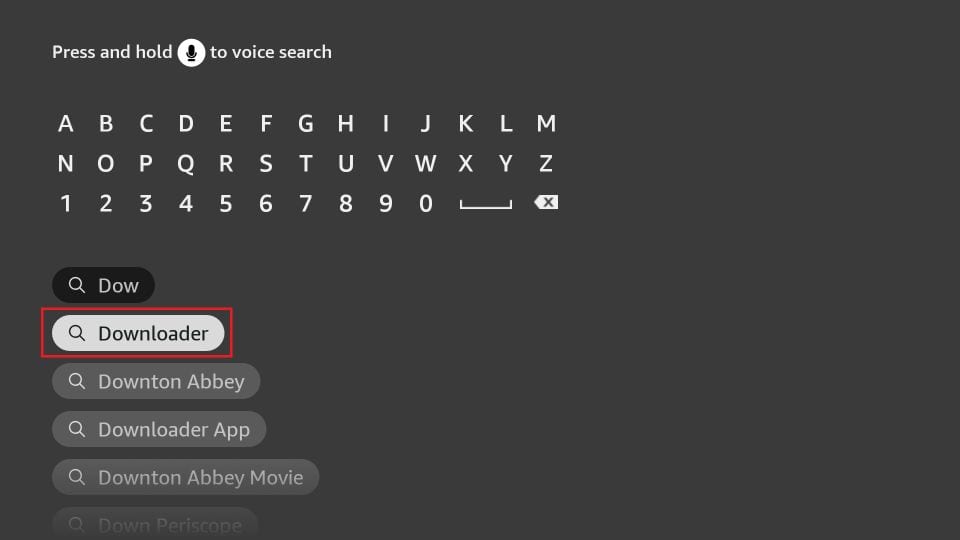
3. Type the name of the app (which is Downloader)
Click the Downloader option when it is displayed in the search results
Choose the Downloader icon on the following screen and download and install the app
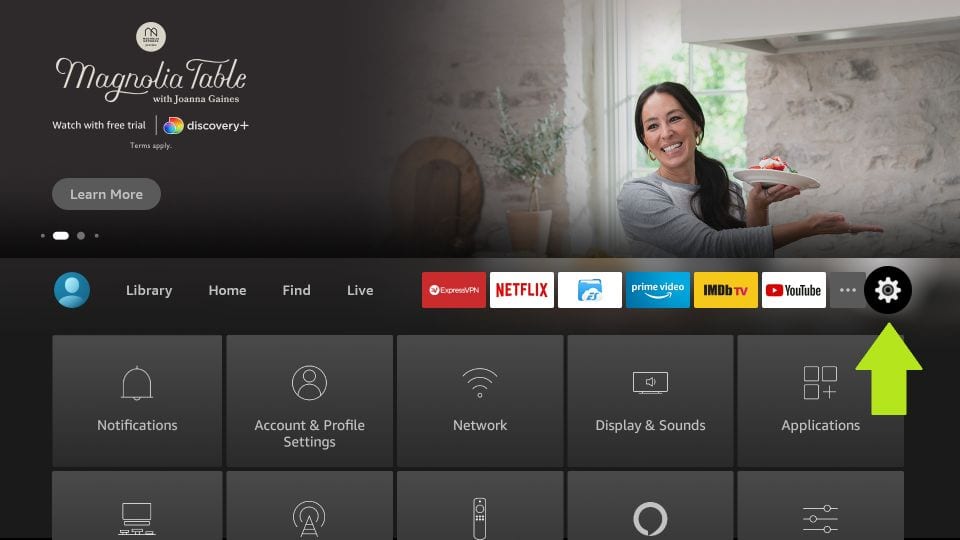
4. After installing the Downloader app, go back to the home screen of FireStick by pressing the home button, the little house, on the remote.
In the menu bar, scroll all the way to the right and click Settings
5. In the Settings, choose the option My Fire TV
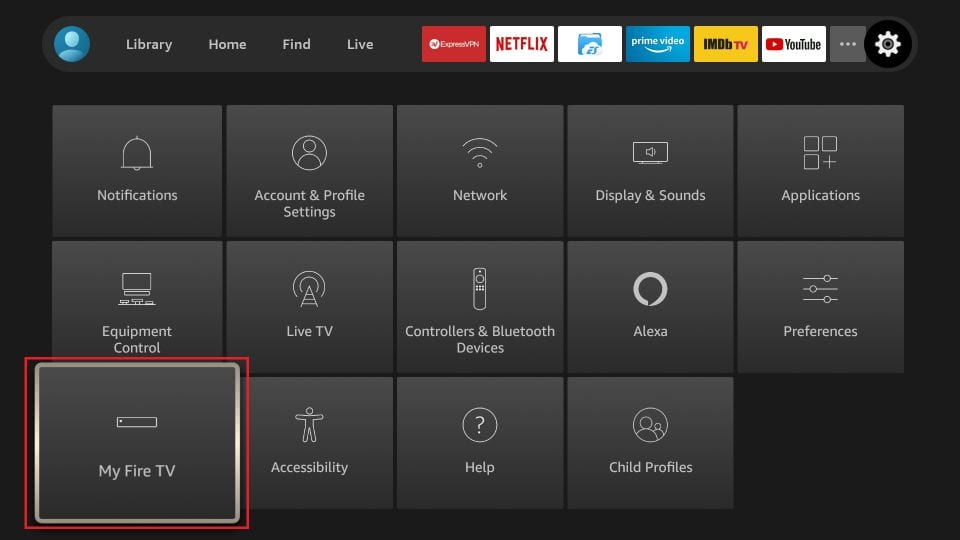
6. Scroll down to Developer Options.
NOTE: If you DO NOT see Developer options, click About then click on Fire TV Stick 7 times using the center circle button on the fire stick remote. This will activate Developer options. Press the Back button on the remote and you will see Developer Options.
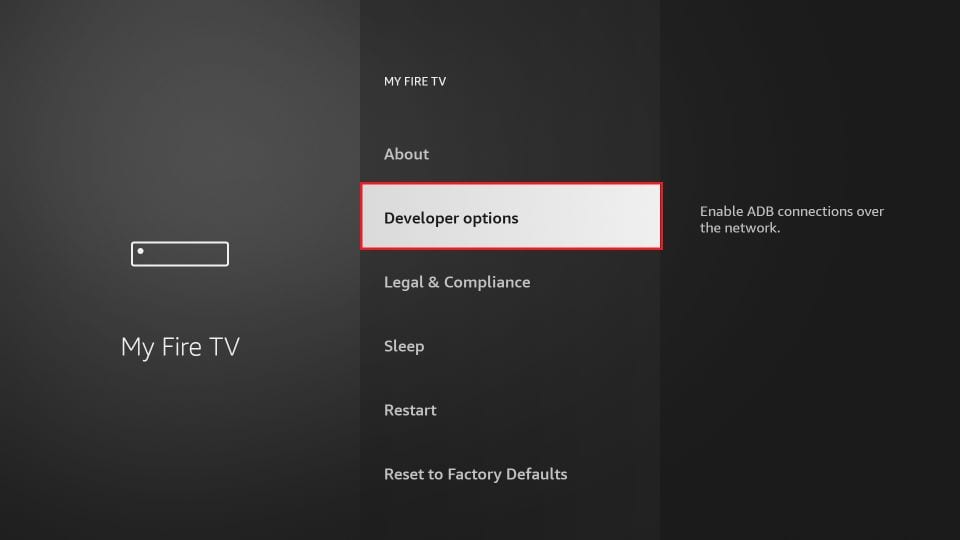
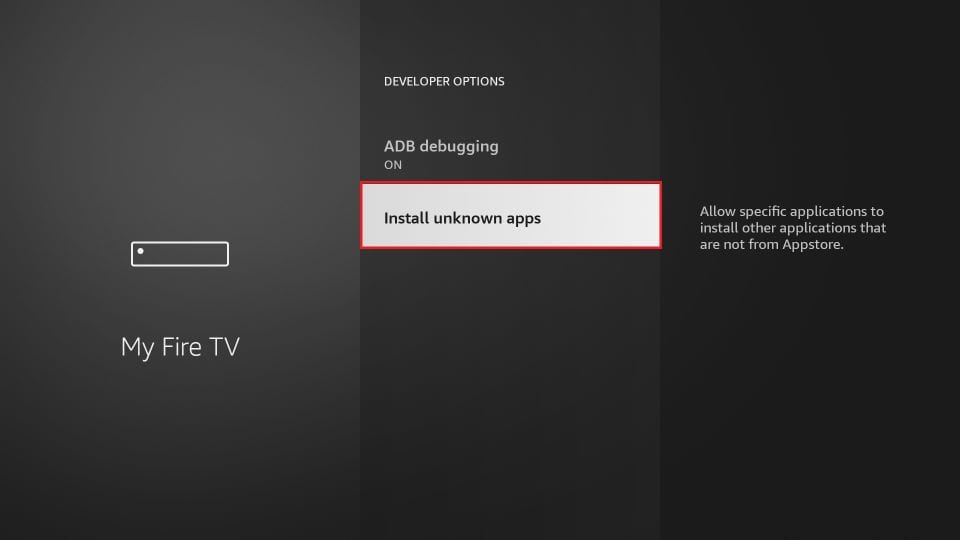
7. Make sure ADB debugging is “ON” then click Install unknown apps.
8. Click Downloader to change the status to ON
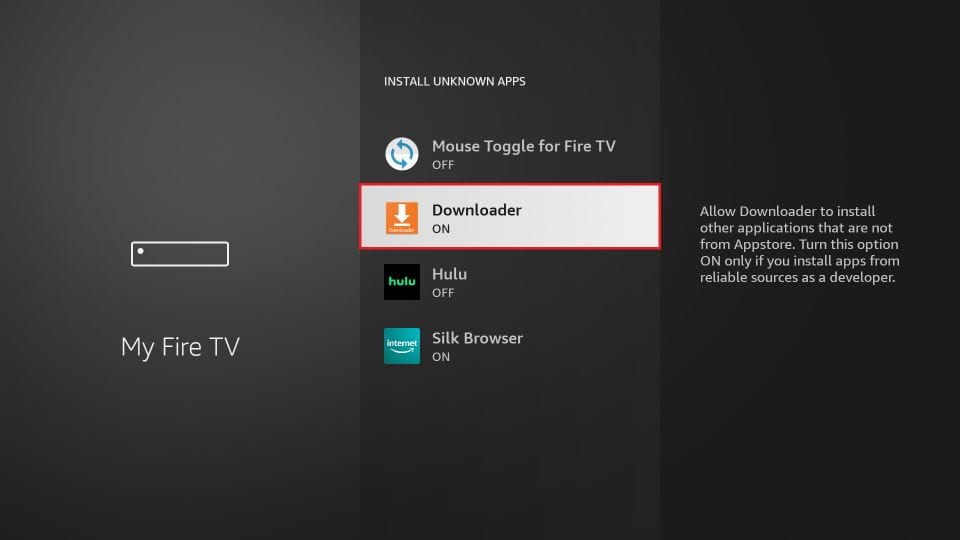
With this, you have configured the FireStick settings to allow the installation of the TAGO app. Follow the steps below:
9. You may now open the Downloader app
When you run this app for the first time, a set of prompts will appear. Accept them until you see the following screen
On this screen, you need to click the URL textbox on the right side (make sure Home option in the left menu is selected) where it says ‘http://’
10. Please type the following only: 8205305 (NOT Downloader Code: 8205305)
Click GO
11. Give it a minute or two until the APP is downloaded onto your FireStick device
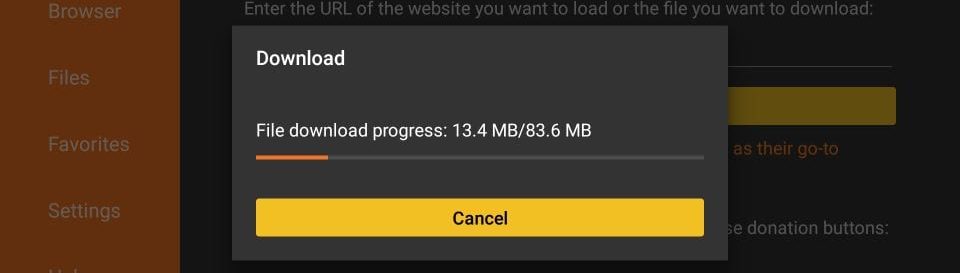
12. When the download has completed, the Downloader app will begin installing the TAGO file. Once this is complete, you will see another screen open and you will need to press down and right to select Install.
Click Install.
NOTE: If you accidentally pressed cancel, you will be taken back to the Downloader page and click on Install again. You will then see this screen populate again. Click Install.
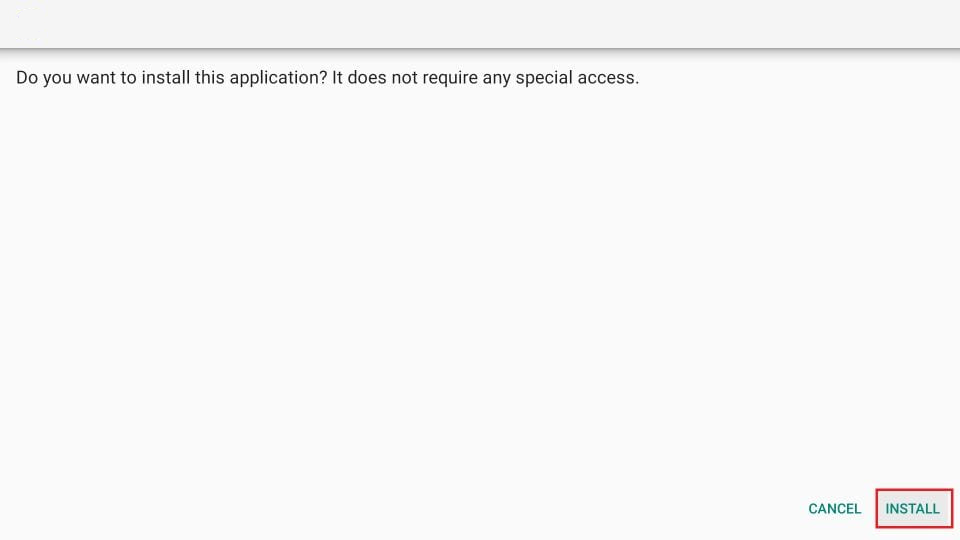
IMPORTANT: PLEASE CONTINUE FORWARD AND FOLLOW THE INSTRUCTIONS TO ENSURE YOUR FIRESTICK SETTINGS ARE CORRECT FOR PEAK PERFORMANCE.
_____________________________________________________________________________________________________________________________________________________
19. If you clicked DONE above instead of OPEN, you will be redirected back to the Downloader screen back on the Downloader screen below.
Click Delete,
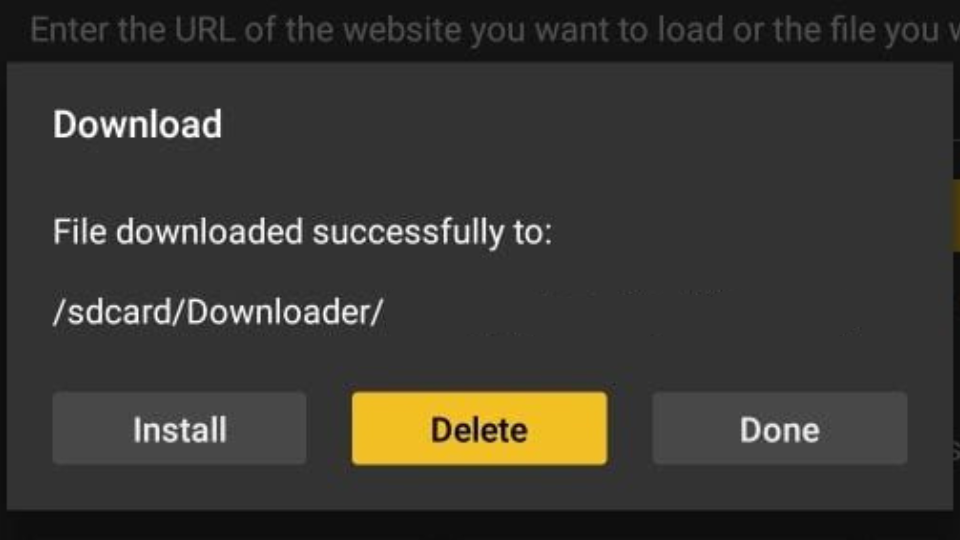
20. After DELETE is pressed, it will remove the installation file from the Downloader app. Click on the home button of the remote, the one that has the house on it. (Go back to Step 16 if you were sent here by accidentally selecting the Delete button from earlier, otherwise continue forward.)
__________________________________________________________________________________________________________________________________________________
PLACING THE TAGO APP ON THE FIRESTICK ‘S NAVIGATION MENU TO EASILY LOCATE AND LAUNCH
You can now Press the Home button on the FIRESTICK remote, (The button with a house on it) Scroll right on the navigation bar to the APPS, or APPLICATIONS, feature located just to the left of SETTINGS. Once you click on Applications you will be able to scroll down and highlight the Tago app. Once highlighted, press the button with the 3 lines on the FIRESTICK remote. Select move and begin pressing up and you will notice the position of the app will change. Position the Tago app to the top navigation bar and hit the center circle button on the FIRESTICK. Now the TAGO App will instantly be located on the navigation banner when you launch the TAGO app.
_____________________________________________________________________________________________________________________________________________________
The final step is to open the Downloader app, click on the FILE tab on the left hand side of the screen and delete any files located there. These are installation files and will not affect your FIRESTICK other than freeing up additional space. Once complete, Press the home button again and you have completed the installation.
(HIGHLY RECOMMENDED) To free up additional space on your FIRESTICK, for to Settings, Applications, Manage Installed Applications and delete any apps that you do not use by highlighting the app, pressing the play/pause button after the app is highlighted, and selecting confirm delete. By freeing up additional space, your FIRESTICK will work at peak performance.
Walmart ONN Streaming Device
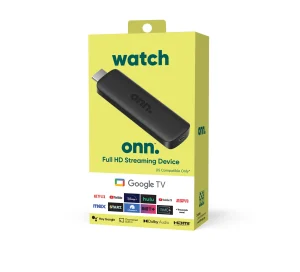
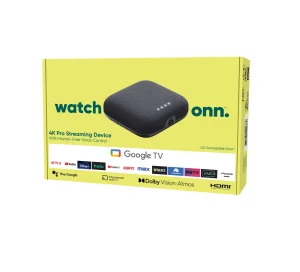
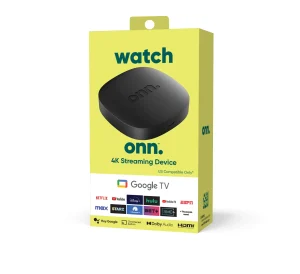
Go to the App Search or Google Play Store on the device and type “Downloader”
Look for the logo below

Install this app.
Once this app is installed, you will need to open it.
When DOWNLOADWER is open, you will need to type 8205305 into the “Enter a URL or Search Term Box” then press “GO.”
Once the download has completed the screen will go white and ask if you want to install TAGO TV App. CLICK on install in the bottom right corner.
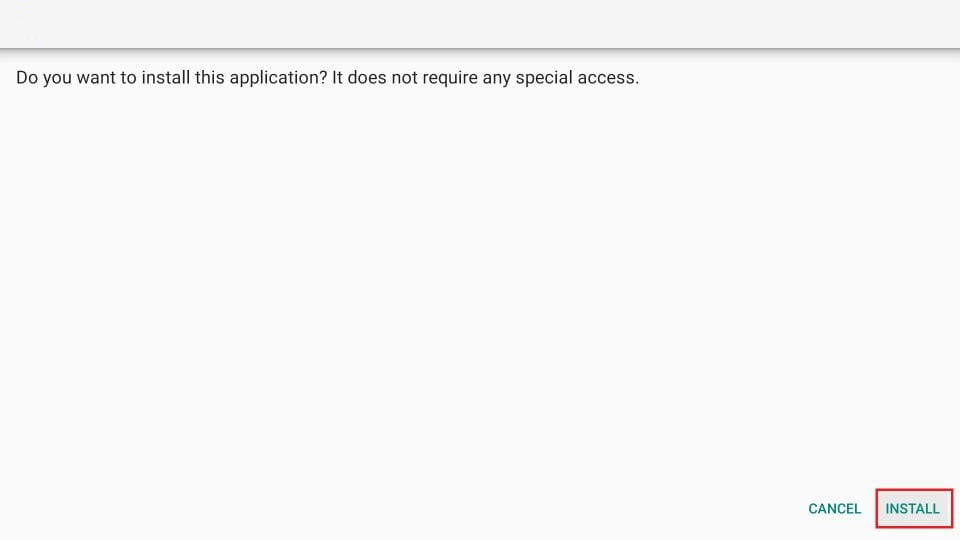
Wait for the installation to finish
Once the Installation has concluded, you will see an App installed notification
Click OPEN and you can begin logging into your new TAGO app.
NOTE: If you accidentally clicked DONE, you can go to the home screen and find the TAGO TV app there and open it.
Once you have opened the App, you will need to follow the directions in the email you received to enter the information you received in your email. If you did not receive the email in your inbox, please check your spam folder. Enter the login information you received from your email showing “ANY NAME,” “USERNAME,” and “PASSWORD.” An EXAMPLE of this is below:
ANYNAME: Tago
USERNAME: 12345678
PASSWORD: 12345678
After Complete, Click on “ADD PLAYLIST.”
Once this is done, you will be taken to the main screen of the TAGO App.
NOTE: If you are not taken to the LIVE TV, MOVIES, and SERIES main screen, your information was not entered correctly. Please make sure to enter the correct information and try again. Both the Username and Password are case sensitive in the event you have an alpha-numeric Username and Password, although, you should receive only a numeric value for both of these. If you entered the information correctly when signing up, you will notice that your Username is your phone number and your Password is your birthday (mmddyear.) If you didn’t enter this information, the system generated a numerical username and password for you.
Now that you have entered your correct information, you are redirected to the main screen of the TAGO APP. You will now notice 4 GREEN tabs on the left side of the TAGO App. (LIVE TV, MOVIES, SERIES, and SETTINGS) You will also notice the SETTINGS tab at the bottom is a different shade of green then the other tabs. Since this is the first time you have logged into the TAGO App, you will need to use the remote to scroll and click “LIVE TV.” Once clicked, you will notice the downloading of the Live TV channels will begin. Once the download is complete, you will need to do the same to “MOVIES” and “SERIES.”
NOTE: The “MOVIES” section takes longer than others to download, typically between 1-5 minutes depending on internet speed. Once all tabs have been downloaded, you are ready to begin watching everything we have available. The TAGO app automatically updates the LIVE TV option once every 24 hours. It also updates the MOVIES and SERIES options once every 2 days.
Chrome Cast or Google TV’s
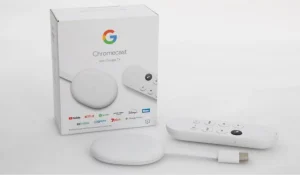
How to install TAGO on Google ChromeCast.
Go to the App Search or Google Play Store on the device and type “Downloader”
Look for the logo below
Install this app.
Once this app is installed, you will need to open it.
When DOWNLOADWER is open, you will need to type 813121 into the “Enter a URL or Search Term Box” then press “GO.”
Once the download has completed the screen will go white and ask if you want to install TAGO TV App. CLICK on install in the bottom right corner.
Wait for the installation to finish
Once the Installation has concluded, you will see an App installed notification
Click OPEN and you can begin logging into your new TAGO app.
NOTE: If you accidentally clicked DONE, you can go to the home screen and find the TAGO TV app there and open it.
Once you have opened the App, you will need to follow the directions in the email you received to enter the information you received in your email. If you did not receive the email in your inbox, please check your spam folder. Enter the login information you received from your email showing “ANY NAME,” “USERNAME,” and “PASSWORD.” An EXAMPLE of this is below:
USERNAME: your phone number
Example: 2248568585
PASSWORD: your birthday. 2 digits for the month and day and 4 digits for the year.
Example 01012000
After Complete, Click Next.
The left of the screen will say Processing. (It will take 1-2 minutes before complete) Once it is finished processing, click on done. This will also take 1-2 minutes. The screen will change to the TV Guide. After 1 more minute, you will see the guide will change from “No Information” to informing you what is on the channels.
Congratulations, you are up and going.
NOTE: If you are not taken to the LIVE TV, MOVIES, and SERIES main screen, your information was not entered correctly. Please make sure to enter the correct information and try again. Both the Username and Password are case sensitive in the event you have an alpha-numeric Username and Password, although, you should receive only a numeric value for both of these. If you entered the information correctly when signing up, you will notice that your Username is your phone number and your Password is your birthday.